ChatGPT is a powerful language model that can assist teachers in a variety of ways in the classroom. One of the main benefits of using ChatGPT is its ability to generate human-like text, which can be used to create engaging lesson plans, quizzes, and other materials for students.
For example, ChatGPT can be used to create multiple-choice questions for a test or quiz, or to generate a summary of a reading passage for students who need extra help. Teachers can also use ChatGPT to generate writing prompts for students, or to provide feedback on written assignments.
Another advantage of using ChatGPT in the classroom is its ability to understand natural language input. Teachers can ask ChatGPT questions in a conversational manner, and the model will respond with relevant information. This can be particularly useful for answering students' questions during class or for providing extra resources on a specific topic.
Additionally, ChatGPT can also be used to generate interactive dialogue-based activities, games, and simulations for students, which can make learning more engaging and interactive.
In summary, ChatGPT can be a valuable tool for teachers in the classroom. Its ability to generate human-like text and understand natural language input make it an ideal tool for creating engaging lesson plans, quizzes, and other materials, as well as answering students' questions and providing extra resources.
Quizlet has always been able to make flash cards, but with a new generation of competitive quiz systems such as Quizizz and Kahoot it seemed antiquated! Students weren't even prepared to give it a go the last time I gave them the opportunity to choose a system to make quizzes.
This time however we were on Quizlet's home turf! Making Vocabulary cards and using them as a revision tool. There's a lot to commend Quizlet as a flash card making tool. It's multi-platform, even works on a Windows phone! Much to the surprise of my one Windows phone user!
In the corner was a suggestion that we could play a new live game and ever one who likes to press big buttons. We decided to give it a go!
Unlike Quizizz and Kahoot this is a team game where you compete against other teams. Teams are randomly formed, but if you don't like the make up they can be reshuffled. I'd also say it's better if you've got portable devices for this. Oddly enough, a computer lab isn't actually the best place to play this, because teams get shuffled frequently.
However that didn't get in the way of most of my students who found ways to dash to each other, grab phones and generally work it out!
The compulsory team element differentiates it from Quizizz and Kahoot, but it also opens up a new type of challenge. Quizlet have thought it through that for the kind of sets they have this kind of game will work better. The other point to note is that Quizlet games take a fraction longer to setup. I've played Kahoots in under 5 minutes, but Quizlet seems to need at least 10 minutes and more than that the first time students play.
In revision season you need all the tools you can get, so I'd strongly recommend Quizlet if you have vocabulary to learn!
How can you mark 740 assignments in less than a minute? Can you imagine the MIS system that would be required for this and the many thousands of dollars required? To top it all, you have no budget for this and no server hardware.
Surprisingly, you can actually do it using completely free software! You will need a little programming expertise and a plan to break up the onslaught of data you are about to receive!
Requirements
Here's what you will need to pull it off:
Google Apps - So long as Google Apps are not blocked, then that should be enough.
Internet connection - Unless you have amazing WIFI I would not recommend doing this in the main hall. In our case students were in classrooms, which in most schools puts much less strain on the Internet. If this is likely to be a problem, then you can still achieve rapid results, but it will be limited by the number of students you can get on the Internet at once. It's also perfectly feasible to use 3G, if your students are on mobile phones.
A device each child can have access to - Students can share by taking a turn each, but it will be slower.
How it was done
1. Split up your entries
It is important that you limit each Spreadsheet to about 200 entries for high speed marking. You could split it up by year group or school house. These can be put back together again later, but at an individual teacher level you are likely to only need to see a small number of the entries.
2. Create a Form
Firstly you need to create a Google Form with either multiple choice questions or one word answers. Web of Notes has a nice guide for this.
3. Mark it with Flubaroo (Optional)
If you would like to send an email to the student and have the whole cohort marked, then Flubaroo is a great way to do this. http://www.flubaroo.com/flubaroo-user-guide If you are a classroom teacher marking your own class, then you can stop here, but for the speed we need you will need a faster method.
4. Importing the data
On row 3 use an importrange command. (Row 1 will be used for titles and row 2 for Awesome Table commands.) =importrange("1FCA2NN8RUXIQVtX-3DZIBWDC3COnaMO_z5W91SsyCcc","DP1!A2:W200") You need to import all the information that you are going to process. See the video for a full breakdown of the command.
5. Marking the Data
There are two ways to do it. Either you can fill the form out yourself as the first entrant or you can hard code the answers in. Hard coding is slightly faster, but your code will be reusable if you put the answers in first and it works with Flubaroo.
The first method works like this: I used an if(H$3=H3,1,0) You use the if formula and if the answer is correct you give it 1. If you would like to weight answers you can change the numbers accordingly. H3 = Being the cell where the answer is. The $ means that when you copy and paste it won't move down.
Optional: To make the spreadsheet look more effective I added the isblank command, but it does not have to be used: =if(isblank(H3),"",if(H$3=H3,1,0))
You can also use conditional formatting to see at a glance how students are doing.
6. Creating a front end for the sheet
I used Google Sites to make a Website that broke down the various checkpoints and houses.
One very useful feature of Google Sites is that you can use Insert -> Subpage listing.
For the large Scale study we had 4 checkpoints split across 4 houses. Making 16 individual quizzes in total.
I created a front page and then on each sub-page I copied and pasted the questions. This enables you to display more columns in the page itself.
7. Awesome Table
To display the actual results for individual teachers I used a gadget called Awesome Table. (Which is also the reason I used Google Sites.) This is why we needed to leave rows 2 blank. For each column decide how Awesome Table should handle it:
CategoryFilter
CategoryFilter - Hidden
NoFilter
Hidden
The CategoryFilter enables you to choose which columns teachers can see and what they can filter on.
Number based columns appear as a slider and text based appear as a drop down. (You can select multiple keywords)
8. Roll Out the Forms
Once everything is in place you will be able to roll out your forms, teachers can see the data that they need for their groups, heads of year can see their whole year at a glance and senior management can quickly evaluate all of the data.
To provide a whole school view, you will either need to use several import range commands for a live Spreadsheet view or copy and paste once data collection is finished.
By using this method mentors had immediate access to filtered data via the dashboard on their students and up the ranks, leaders could target students who were likely to need more help.
The Result
I expected it take up to 5 minutes for the data to come rolling in, but I found that data was being delivered significantly faster and in most cases the slowest part of the process was the time taken to load Awesome table. Raw results were coming in less than a second and teachers had access to those results in under 60 seconds.
Piloting it in your school
My advice is to have a go with something low stakes. You can start with something as simple as a quiz that you might do in form time. (Homeroom time). Test if your Internet can handle it and if so you have an amazing opportunity to collect and analyse data in near to real time.
Future enhancements
1. The viewer worked very well for Mac or PC based teachers, but did not work quite as well for iPads. We are looking into how we can address is this.
2. Live charts - Live charts are a possibility, because we found out that each tab is a separate task in Google Sheets.
With thanks to the following people
The amazing teachers and staff at Garden International for making the large scale study such a success.
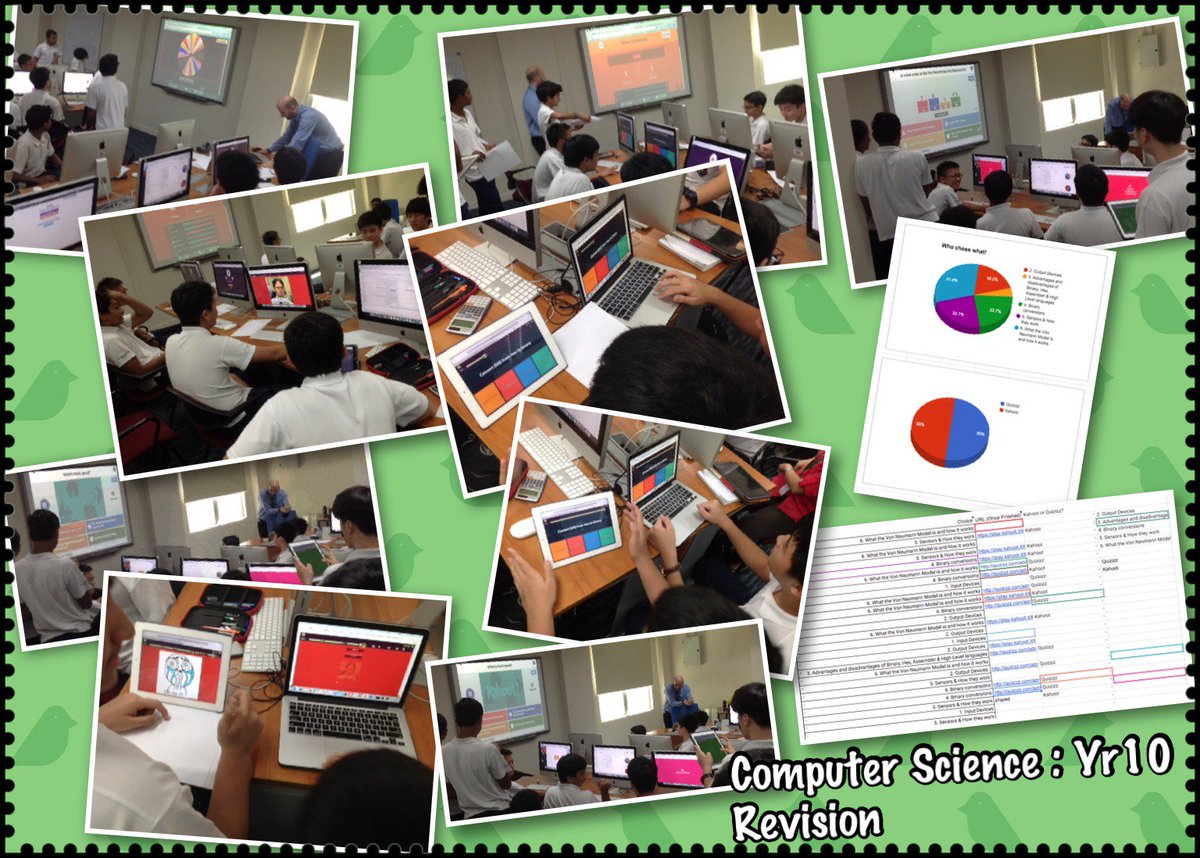
This week was a revision week before my year 10's next big assessment. So I decided to run a little competition. The students could choose any quiz app they pleased and then the following lesson we'd play the quizzes.
Round 1 Quizlet was knocked out the competition straight away, because none of the year 10s wanted to develop quizzes for that platform and neither did any students choose Socrative. So they didn't make it to the final!
Round 2
The two finalists were Quizizz and Kahoot Students enjoyed creating questions for both platforms and the process was pretty similar.
The Grand Finale I used a Single Google Sheet to coordinate the quizzes. Each student gave me an url to direct the quiz. I then used a random name picker to choose the quizzes.
Let Battle Commence!
Both platforms feel like a quiz show with countdowns and music.
Class Game Vs individual
The first key difference is that in Quizizz students play through all the questions when they choose to start the game. This enables students to do the exercise when they have finished another task or it can even be set for homework. Whilst on Quizizz they were highly focussed on their screens but they were not so directly competing with each other.
In Kahoot the whole class plays together, which adds to the sense of community but means everybody has to play the same quiz at exactly the same time!
Question displayed on Main Screen Vs at Your device
Quizizz also displays the questions on the students device, so not everybody has to see the projector, which is a real advantage in rooms with poor visibility.
Logins
We had no difficulties at any point logging into Kahoot and this weekend I had over 80 players at once playing it. With Quizizz we did have one or two small login problems, but all were fixed with the judicious use of the refresh button.
Who won?
The students narrowly gave the win to Kahoot! They acknowledged the fact that Quizizz enables quizzes to be given out as homework and they enjoyed using both. So it was a noble contender that we hope goes from strength to strength!