I very much enjoyed presenting "Visually teaching vocab to younger students (KS1 aged 5-8)". It's been a while since I did anything for younger years and I was very pleased by the reaction of everyone. We now have such powerful tools in our hands compared to what I had when I was teaching EAL students! I remember all that paper cutting & whiteboard writing! Nathan also does two excellent sessions to help you make stories, so well worth a watch!
Wednesday, 29 December 2021

Thursday, 12 August 2021
Presenting on Zoom (2021 Summer edition)
Over this past 18 months we've learnt a lot about presenting online and with teachers changing schools, going online, having to do Hyflex learning etc I thought I'd share what I've learnt about the various ways you can present and the advantages and disadvantages of each. I've pretty much tried them all as far as I can tell and they all come with pros and cons!
Consider Recording Your Presentations
When I first started teaching online, I found it much easier to record my presentations and share them via Youtube. There are lots of screen-recording options including Loom that is incredible and free for educators and I'd use it as a free option. I actually use Camtasia, (10% discount link thanks to FlippedClassroom) because I have a license and am incredibly comfortable with it. If you have budget for it and plan to make a lot of videos this is well worth the money and is what most streamers use. Don't forget Keynote and PowerPoint enable you to record videos directly in the app. PowerPoint even has a coaching function!
Once you've recorded your video, you can then upload it to youtube and it can be watched on pretty much any device. You can also use Edpuzzle, TED Lessons or put into a Google Form. to add formative assessment.
During the lesson you can simply ask students to watch the video and they are much more likely to be able to watch it in the quality you wanted it with the animations fully in-tact. It also means you can answer questions in the chat as students watch.
I do not recommend screensharing videos EVER! I have NOT once experienced a video shared on-screen that matches the quality of Youtube. Much better to give them the link & let students play or if you need to check put it into Edpuzzle with some questions. Too many teachers think what they see on their screen is what can be seen by the student.
No Animations Required
Zoom recently introduced a presentation mode. This is great, because it appears in your camera with you conveniently placed on your slides. You don't even need a green screen for you to be cut out.

If you feel this doesn't quite do what you want and you want something a bit more advanced then mmhmm gives you a lot of flexibility and Prezi video gives you a really dynamic feeling to your presentation. Both are giving free subscriptions to educators. They also enable you to record your presentations in advance in an attractive format.
Presenting in a window (Need animations)
If you need animations then chances are you will want to use PowerPoint of Keynote. Both now have a present in a window option. This means you will be able to see your presentation and the students in zoom.

Keynote presentation in a window

PowerPoint presentation in a window
Peardeck (Interactive Presentations)
Our school has a license to peardeck and it has been incredibly useful to help us make our presentations fully interactive. If you are inside the European Union, please check privacy policy for your country. Nearpod & Quizizz both have some similar functions if you are looking for an alternative.
Peardeck will work with PowerPoint or Google Slides. However animations are tricky, but the tradeoff is that you can create really interactive slides with questions, links and videos inside the presentation. You can also choose to make it instructor or student paced.
The real downside with Peardeck is that it really needs to be on a laptop for students to be able to comfortably access both Zoom and peardeck at the same time. We've had numerous problems with iPads and its use as part of a live lesson. Student paced is generally fine, but if you want to present then present live and give questions in a student paced Peardeck.
Subtitles & Closed Captions
Generally I avoid using Slides directly in Zoom, because there isn't a present in tab option and it isn't well integrated on mac unless you have 2 screens. I'd rather download and present on PowerPoint or use the Peardeck plugin. This was because on a single screen it was difficult to follow where your tab would appear.

Go to bottom left of the screen and you will see the presenter menu with captions
However PowerPoint and Slides do enable Closed captioning, which is not only great for students in noisy environments, hard of hearing but also if their internet isn't perfect they will see the subtitle for longer and not miss words. It is important to set the language to the one you are speaking down to the dialect, so English UK works very well for me.

PowerPoint even has live translation, which is really helpful for EAL students.
Summary Table

I hope this is a helpful guide, please share your tips in the comments.
Friday, 26 March 2021
Meditation is BORING! But a meditative video game might just do the trick.

This game is all about going underwater, but unlike the terror inducing underwater sections of Sonic this game removes the survival aspect and lets you freely explore underwater realms. It takes you through incredible underwater seascapes and to see beautiful fish and underwater structures.
I bring this game to your attention, because right now it is completely free for Playstation with Play at Home.
Tuesday, 8 December 2020
Happy Christmas - Enjoy a Coding Adventure!
I've made a little Christmas Coding book for everyone to enjoy! These challenges work perfectly on a wide range of computers including the Raspberry Pi!

Tuesday, 14 April 2020
Latest Zoom Leaks: What it means and how can you be more secure?

500,000 accounts leaked makes for good headlines on sale on the dark web makes for good headlines, so why exactly are they being sold for less than a penny each?
Firstly as a school, most teachers and students should sign in using their Google ID, so that Zoom does not get your passwords. These were NOT part of any leak.
Secondly, this does not appear to be as exciting as it first appears, because a lot of the data appears to be meeting IDs or sign-ins rather than the actual sign-ins with usernames AND passwords. In many cases these USER IDS have been matched to passwords stolen from Google, Microsoft, Facebook et al in previous attacks.
Right now, Zoom is a hot target, because it provides the service everyone wants. Two pieces of advice to ensure you stay more secure:
1. If you sign up for any online service that's free, be sure to use passwords that you don't use for banks, payments etc.
2. If you have a choice, use your Google or even Facebook ID, because that's one more layer a hacker has to get through.
Remember that it costs a lot of money to keep a service secure and Zoom has definitely been experiencing growing pains.
Stay safe everyone!
About James Abela
Before becoming a teacher, James Abela used to work as a web-developer and was responsible for the security of several million pounds worth of intellectual property. Also fought against Russian hackers.
Sunday, 5 April 2020
Zoom Video Conferencing Security for the non-technical
Tl;dr Make sure you use passwords, use and read waiting room IDs, give students meeting ID only just before the meeting.
 The new focus on Zoom has meant hugely increased scrutiny from incompetent journalists who know nothing about cyber-security and competitors highlighting features that apparently make them more secure! In this article, I take you through the security Zoom has and how to make sure you are comfortable with that security.
There has been a lot of discussion over which is the best conferencing software for classrooms and all of the solutions I have seen have flaws. All of the conferencing software has been developed with corporate meetings in mind. So for classroom purposes, there are features missing.
Zoom is the most feature rich from a teacher point of view. It has key features that teachers love:

There has been a lot of discussion over which is the best conferencing software for classrooms and all of the solutions I have seen have flaws. All of the conferencing software has been developed with corporate meetings in mind. So for classroom purposes, there are features missing.
Zoom is the most feature rich from a teacher point of view. It has key features that teachers love:
- Waiting Room - students are admitted into the room by a teacher. Also prevents unwanted guests
- Thumbnail video of everyone - Everybody can be seen in Zoom up to 49 people, which is enough for you to see all your class at once.
- Breakout rooms - You can send students to smaller rooms, so that they can talk with each other.
- Built in whiteboards - Not unique, but helpful.
Why are all of these features important?
When there were relatively few meetings, 9 numeric digits seemed like plenty, but now there are 200 million meetings every day with zoom. Even with a simple brute force attack you might be able to guess a number to zoom-bomb.
However the password is a good deal more difficult to guess, so it is essential that this is ON.
Secondly, although a stranger might be able to come into your room by random they are unlikely to have the name of one of your students and so it is important to read every name in the waiting room.
With these three features setup, security from a teacher point of view is good.
The Odds
For the mathematically inclined your odds of guessing are:
Chances to guess meeting ID: 200,000,000 : 999,999,999
Chances to guess password: 1:9999999999
Once you combine these then the odds of a simple brute force attack are tiny and actually smaller than using a leaked Office 365 account or Google ID to get into a meeting.
Students complicit
In some cases students have been giving away their personal information and meeting codes. Therefore an additional security measure is to not give meeting IDs out too long before the meeting. You can still schedule them, but only share with the students shortly before the meeting,
Note if students misbehave, it is easy to enough to put them back into the waiting room. Be wary of kicking students out completely, because depending on your setting they will not be able to come back to the meeting.
Student Guidelines
Like anything else students need to know the rules that will keep them safe and have a smooth classroom. Here are the guidelines I use to run my lessons smoothly:
- I assign a monitor every lesson to let me know if my video and presentation is smooth. They stay on audio for the whole time I am presenting
- In Google Classroom, I ask a question to ensure everyone is active in the class and it helps to make registration smoother (This reduces the time I need to take a registration, because I can see instantly who is not there and ask directly)
- Students are told to be fully dressed and in a public space in their house.
- Students must use their real names.
Teacher Tricks
I use these to help students, but also to reduce frustration because that's the surest way to ensure a student doesn't cooperate:
- I still use Google Classroom for students with weaker internet.
- I assign one Google Doc for the whole lesson with all the instructions in it, so that students have less screen flicking to do and can follow the flow even if their internet drops out mid-lesson. (Be sure to encourage use of offline docs.)
- I use Google Slides with the captions function to help students who are EAL
- I record the lesson locally and upload to an unlisted youtube area. (In Malaysia, students can use Youtube data with 3G very cheaply). If there is not an incentive to use YouTube, then use Drive instead.
- I use a second screen so that I can see the student thumbnails at all times. (One good feature of Zoom is that even on a single screen you can see active students when screen sharing)
It might be obvious, but please don't share your Zoom classrooms on Social media... Notice how there's no picture of zoom in use here!
Alternatives to Zoom
There are quite a few alternatives to Zoom. Internet infrastructure varies and you might find one of these alternatives suitable for you.
- Google Meet - Fully integrated into Gsuite, but lacks many of the features of Zoom
- Microsoft Teams - Great for people with Office 365, but teachers who are not used to it have complained that the interface is cumbersome
- CISCO Web-Ex most secure platform, but video performance is variable
These are more for specific purposes, but useful tools none the less:
- Streamyard - This enables up to 6 people on the call and you can broadcast directly for youtube. A good choice for assemblies and other events where you are going to give information to a larger gathering.
- Flipgrid - A good way to be able to teach asynchronously
- YouTube - Consider doing your presentations directly on YouTube. Don't forget you can add questions with TED ED Lessons or EdPuzzle
About James Abela
Before becoming a teacher, James Abela used to work as a web-developer and was responsible for the security of several million pounds worth of intellectual property. Also fought against Russian hackers.
Thursday, 5 April 2018
Getting Started With Computing Resources

Primary
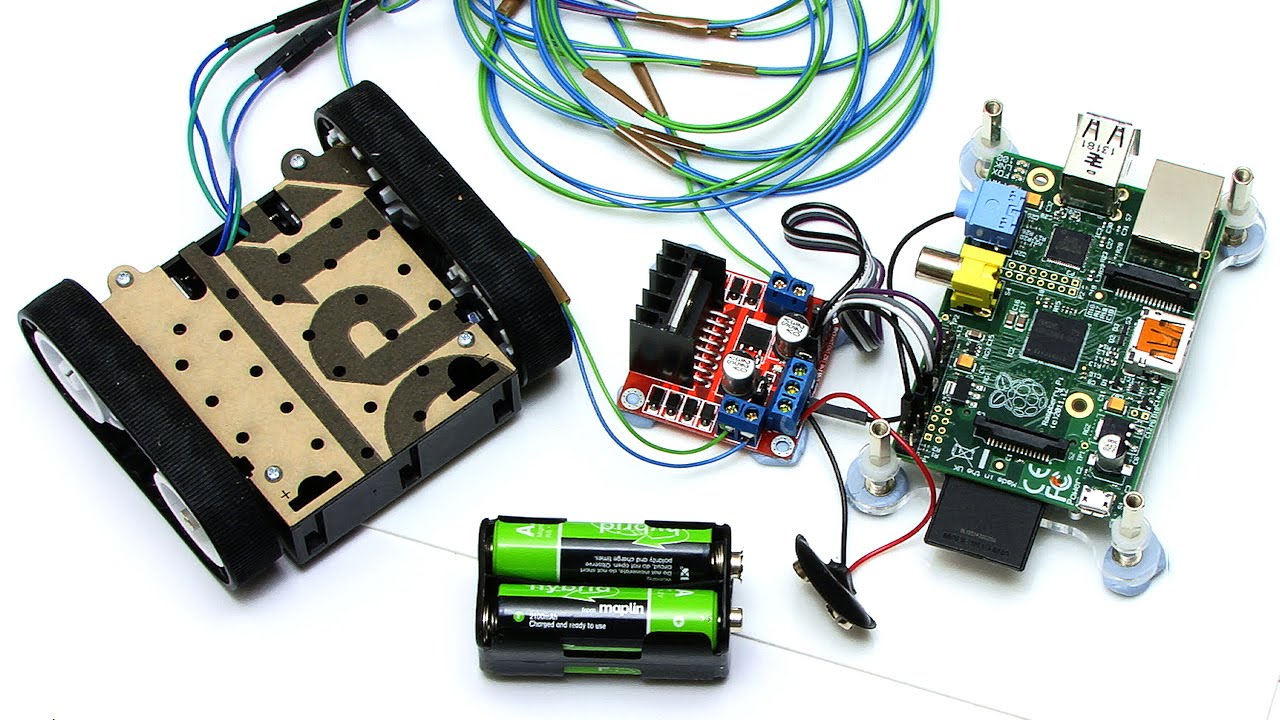
For Primary I'd recommend the Barefoot computing resources and either making disposable robots such as what you can make with Raspberry Pi or using robots such as Dash and Dot which you are more robust. There's plenty of options on the market, so have a look around. I'd make the decision in Vietnam when you know what you are doing.
For primary coding, I'd recommend Scratch as the go to tool if they're on Computers. Otherwise, Hopscotch, Scratch Junior and the new Swift coding for iPads (64 bit only)
Secondary
For Secondary you should do Python for iGCSE and A-level or Java for IB. I've included a list of resources to help you get started. I'd also recommend getting a good book for Python and as you are in the UK, I'd recommend checking them out at the library and see which you'd get along with. Java is generally considered more difficult than Python so I'd be careful about introducing it at Key Stage 3. Some have managed it at year 9 with some good frameworks. I've made a versal course that introduces the basics to year 8 for Python. https://versal.com/c/
General Resources
Hodder Key Stage 3
For a complete UK Key Stage 3 curriculum, this series is very useful:
(Interest disclosure: I am one of the authors)
Barefoot computing (primary)
Great site for students beginning to code
UK Computer Science Curriculum
Dash & Dot Robotics
Apple's resources
Code To Learn
Scratch Based with some good resources
Code.org
Great organisation for beginner coders. I find it a little too on the rails in some parts.
Raspberry Pi Curriculum resources
Great for physical computing, but also a lot of good Python materials
Tynker
A very nicely packaged curriculum
Code Club Projects
Some nice projects here for Python
Please feel free to add other resources in the comments.... I'm sure all will be appreciated!
Subscribe to:
Posts (Atom)